

API & Integrations
The Integrations & API hub is your command center for connecting Prembly into your existing stack. Whether you are performing backend server-to-server calls, embedding a frontend widget, or syncing data with third-party apps, you will find all the credentials here.
1. API Integrations
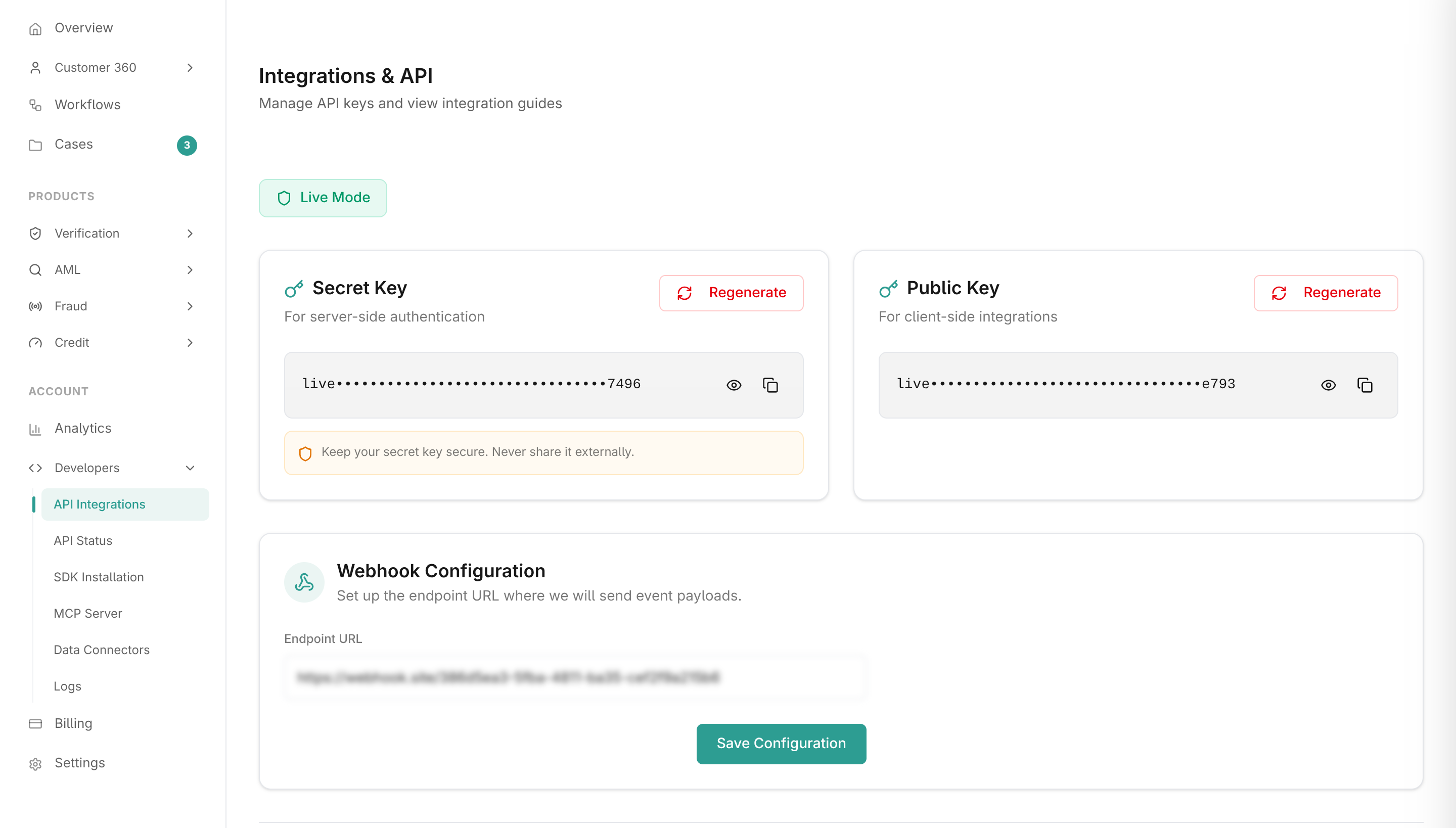
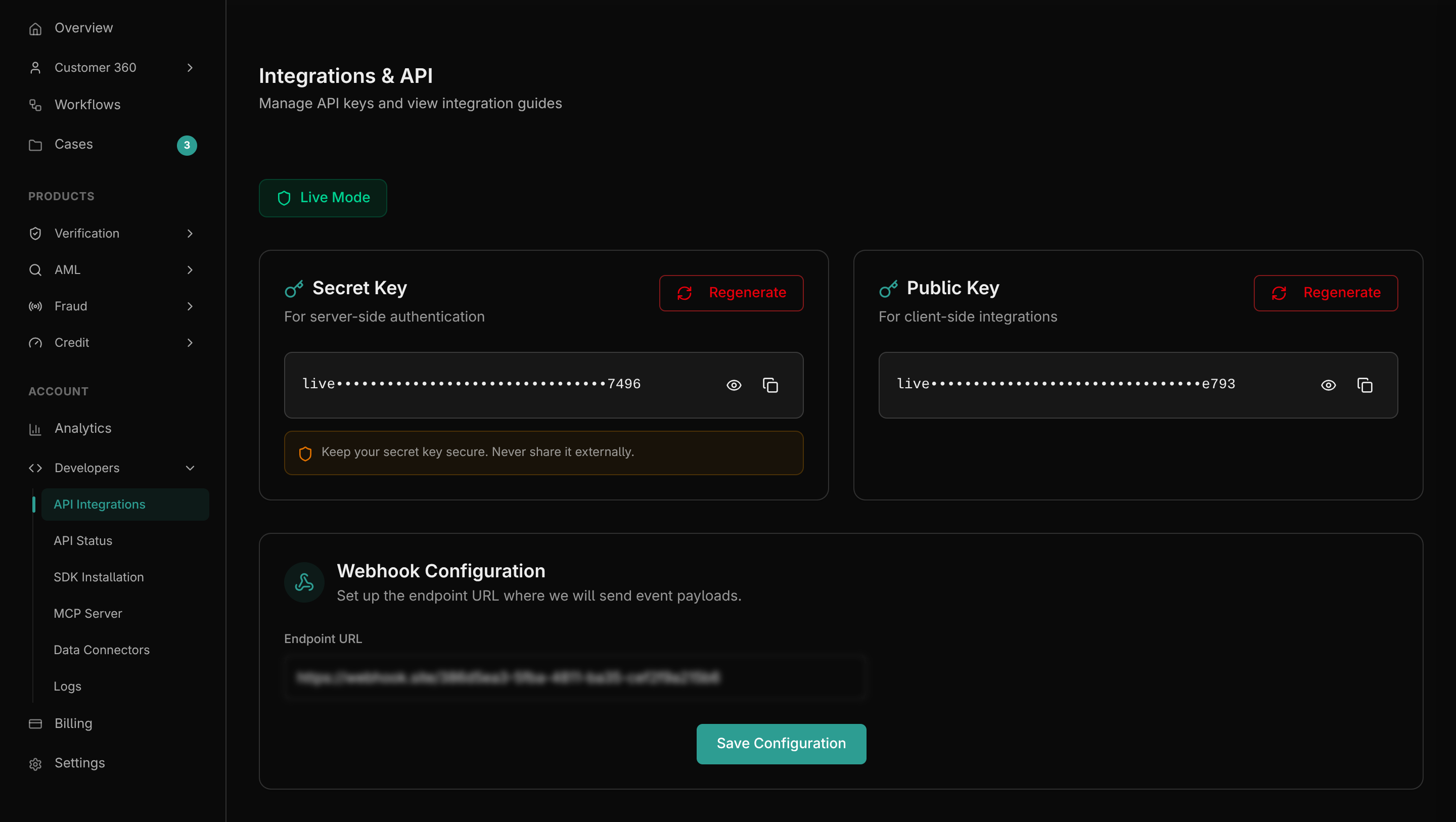
The Integrations & API (/dashboard/integrations) page is where you manage your authentication credentials and view raw REST API endpoints.
- Secret Key: Used for server-side authentication. Keep this secure; it has full access to your account's verification endpoints. Never expose this key in client-side code (web browsers or mobile apps).
- Public Key: Used for client-side integrations (e.g., initializing the mobile or web SDK).
- Webhooks: Configure your
Endpoint URLto receive real-time JSON payloads when asynchronous events (like a background check completing or a bulk upload finishing) occur. - Live vs. Sandbox: You can seamlessly toggle between Live Mode (real data, real billing) and Sandbox Mode (test data, no billing) using the environment switcher. Your API keys will automatically update to reflect the active environment.
Authentication Header Example
All server-side API requests require your Secret Key passed in the X-API-Key HTTP request header:
POST /api/v1/verification/bvn/ HTTP/1.1
Host: api.prembly.com
X-API-Key: your_secret_api_key_here
Content-Type: application/json

{
  "bvn": "12345678901"
}
Explore Interactive OpenAPI Specs
Ready to test endpoints live? Visit our Interactive OpenAPI Reference to test endpoints, inspect parameters, and generate cURL request payloads across all modules.
2. SDK Installation
For a faster, drop-in UI experience, you can use our pre-built SDKs (Web, iOS, Android, React Native).
- Navigate to Integrations > SDK (
/dashboard/integrations/sdk). - Follow the step-by-step installation guides to embed Prembly's SDK.
- You will need your Public Key to initialize the SDK securely on the client side.
3. Response Codes & Error Handling
To build resilient integrations, you should familiarize yourself with Prembly's custom response codes and verification statuses. Even when the HTTP status is 200 OK, our API uses specific internal codes (e.g., 01 for Record Not Found, 03 for Insufficient Balance) to indicate the exact outcome of a request.
4. Rate Limits & Quotas
To ensure platform stability, Prembly enforces rate limits and quotas on all API requests. When a limit is exceeded, the API will respond with a 429 Too Many Requests HTTP status code.
We implement two layers of limits:
- Per-Minute Rate Limit: A dynamic limit on how many requests your organisation can make per minute. If exceeded, the API returns:
"Request exceeded the maximum allowed request per minute...". - Monthly API Quota: A hard limit based on your subscription or billing plan. If exhausted, the API returns:
"Monthly API quota exceeded for this organisation...".
If you consistently hit these limits, please reach out to our support team to request a quota increase.
5. API Status
To ensure your integrations are running smoothly, you can monitor the uptime and latency of Prembly's core services.
Navigate to the API Status page (/dashboard/integrations/api-logs or the external status page) to view real-time incident reports, historical uptime, and webhook delivery success rates.