

Case Management
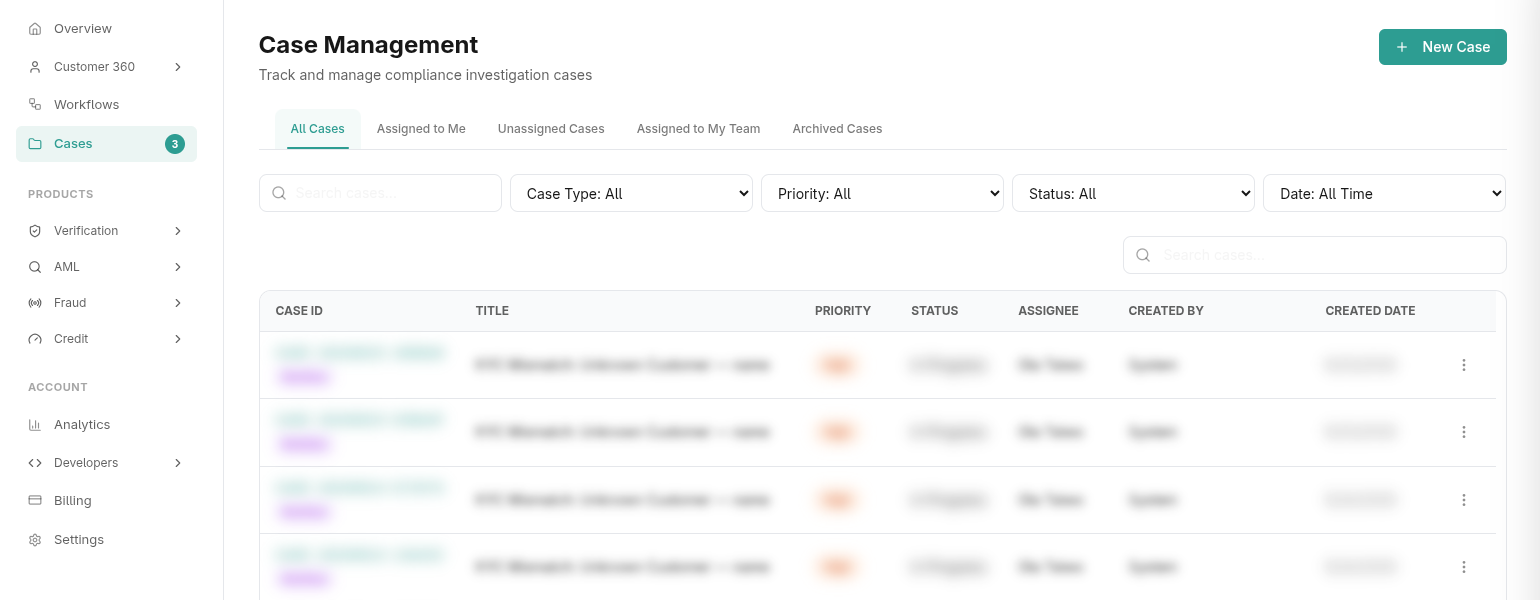
The Case Management module provides a centralized workspace for compliance teams to investigate alerts, request evidence, and collaborate on resolving anomalies. Whether generated automatically by a Workflow, a Transaction Monitoring rule, or manually created, all compliance issues funnel into this dashboard.
1. Case Lifecycle & Statuses
Cases progress through a structured lifecycle, allowing teams to accurately track their workload. The primary statuses include:
- Open: Newly created case awaiting assignment.
- In Progress: Initial review has started.
- Investigating: Active investigation is underway.
- Escalated: Sent to senior compliance officers or legal.
- Resolved: The investigation concluded with an actionable decision.
- Closed: The case is archived and locked.
Cases are also tagged with Priorities (Critical, High, Medium, Low) to help officers triage their queue effectively.
2. Investigation Workspace
When you open a specific Case, you enter the Investigation Workspace, which consolidates all context into a single view:
- Timeline: A complete, immutable audit trail of every action taken on the case (creation, assignment, status changes, comments).
- Evidence Management: Securely upload, download, and review files (e.g., suspicious documents, screenshots, transaction receipts) related to the investigation.
- Notes: Internal, threaded communication for compliance officers to collaborate and leave context for handoffs.
- Linked Entities: Direct links to the related Customer 360 profile or specific Transaction Monitoring logs that triggered the case.
Case Actions
Officers can perform several actions to manage the case:
- Assign: Take ownership of the case.
- Handoff: Transfer ownership to another team member.
- Escalate: Raise the priority and notify supervisors.
- Archive: Hide resolved cases from the active queue.
3. Customer Information Requests
A core feature of the Case Management system is the ability to securely request additional information or evidence directly from the customer.
- Create Request: An officer drafts a request outlining the required information (e.g., "Please provide a valid utility bill").
- Public Portal: The system generates a secure, one-time
access_tokenand emails it to the customer. - Customer Submission: The customer accesses a public-facing portal (without needing to log in to Prembly) to upload the requested files and submit their response.
- Review: The officer receives a notification, reviews the uploaded evidence, and can accept or reject the response directly within the case.
- Reminders: Officers can trigger automated reminders if the customer hasn't responded within a specific timeframe.
4. Automation & Workflows
Case Management is deeply integrated with the rest of the platform:
- Transaction Monitoring (TM): Cases can be automatically generated directly from flagged transactions, pulling in all relevant transaction metadata.
- Workflow Defaults: You can configure default templates so that specific case types (e.g.,
AML_ALERT) automatically spawn with predefined checklists, priorities, and assigned teams.