

Background Checks
The Background Checks (BGC) module is a comprehensive verification service allowing organizations to create custom packages and manage deep candidate screening requests.
This process actively involves the Candidate, utilizing an automated email system and a secure candidate portal to securely gather data and payments.
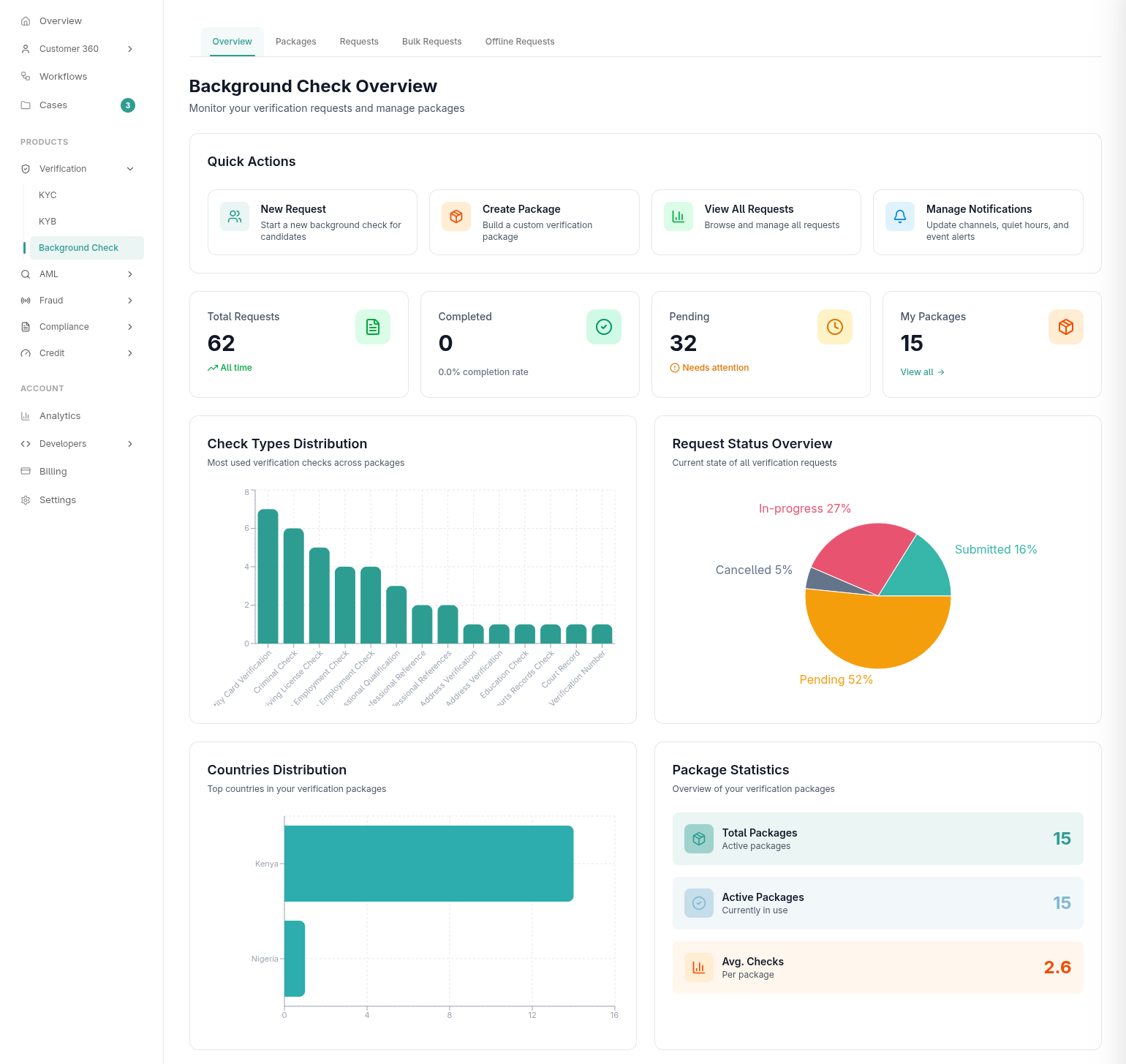
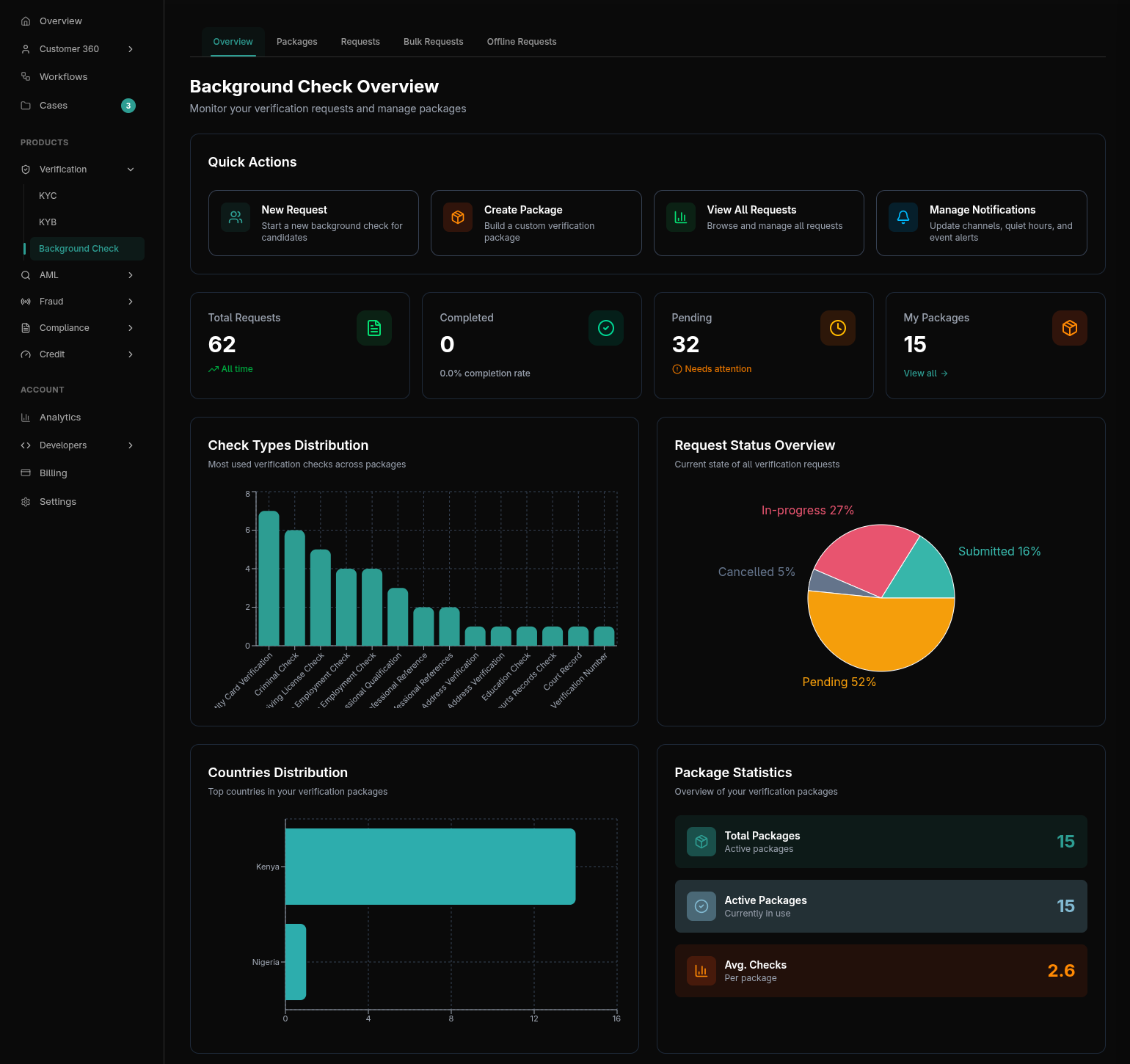
1. Package Management
Before sending a request, you must define the scope of the check using Packages. Packages dictate exactly what information the candidate must provide.
System Packages vs. Custom Packages
- System Packages: Pre-configured packages created by Prembly for common use cases (e.g., "Standard Employee Check" containing Identity, Address, and Criminal Record checks).
- Custom Packages: Build your own package tailored to your organization. You select the exact checks required (e.g., combining Education verification with Credit Reference Bureau).
Payment Configuration
When creating a custom package, you determine who pays for the check:
- Organization-Paid: The cost is deducted directly from your Prembly Wallet balance.
- Candidate-Paid: The candidate is presented with a payment gateway (Paystack/Flutterwave/Stripe) inside their portal and must pay before the background check begins.
2. The Candidate Lifecycle
Unlike instant KYC checks, Background Checks are asynchronous and heavily involve the candidate. The system handles the entire communication loop.
Step 1: Sending the Invitation
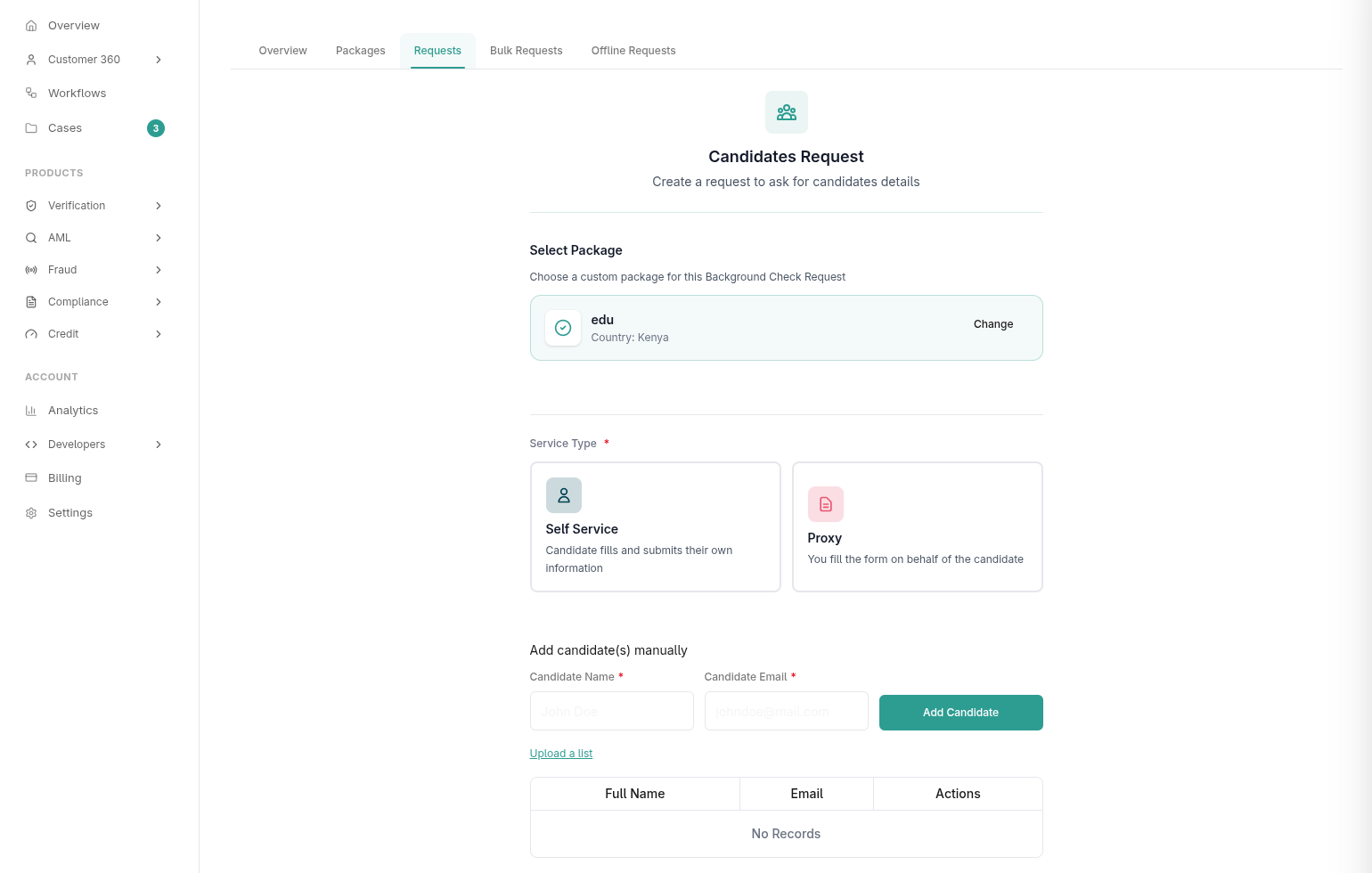
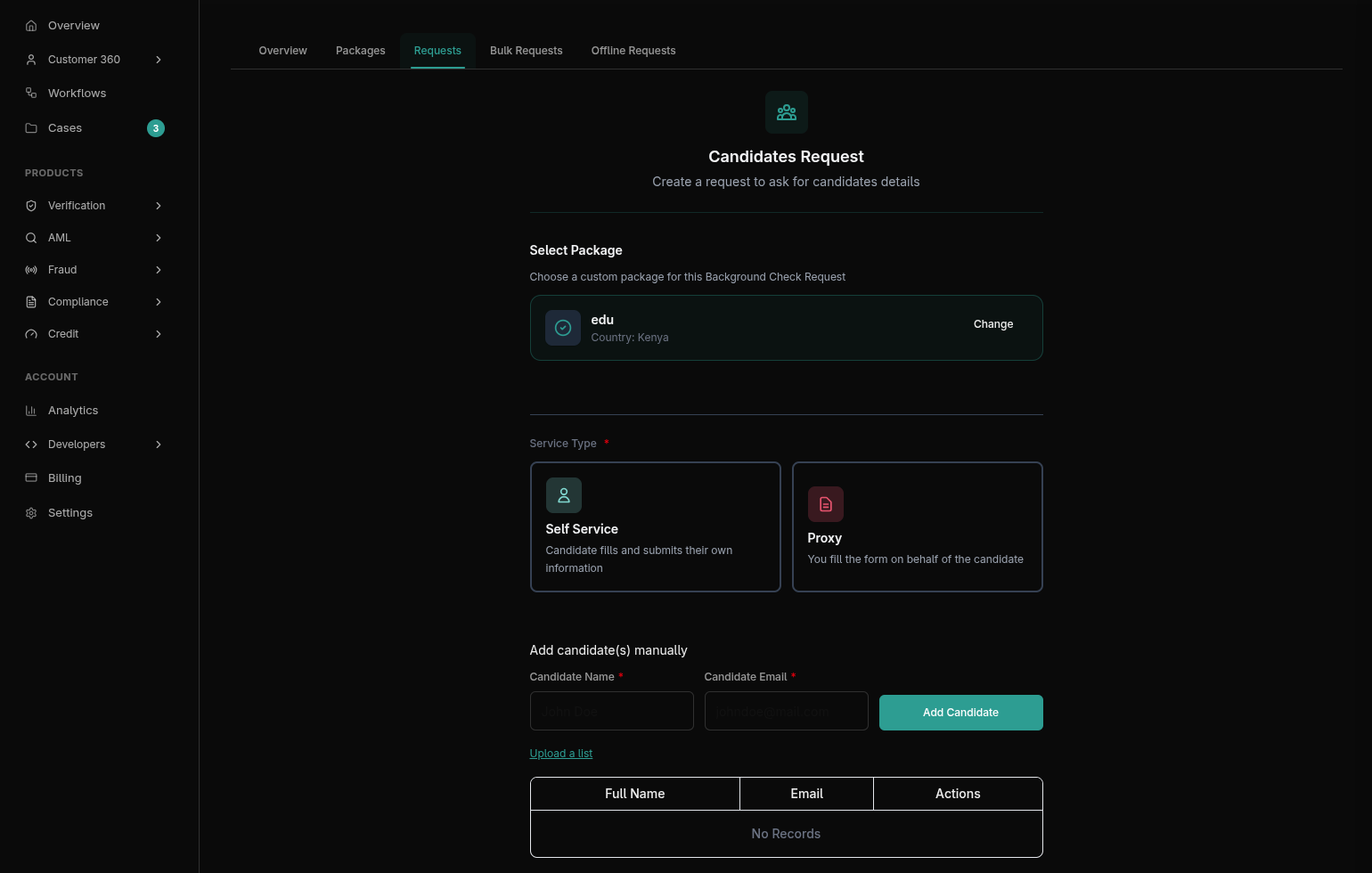
To initiate a check, navigate to Products > Verification > Background Check.
- Click New Candidate.
- Select your desired Package.
- Enter the candidate's Name and Email.
- The system immediately dispatches a white-labeled Candidate Invitation Email containing a secure link.
Step 2: The Candidate Portal
When the candidate clicks the link, they enter the public Candidate Form. Here, they will:
- Provide consent for the background check.
- Fill out required fields dynamically generated based on your Package (e.g., uploading degrees, entering past employer details).
- Pay for the check (If the package was set to Candidate-Paid). Upon success, they receive a Payment Receipt Email.
Step 3: Automated Notifications
Prembly automatically manages the candidate via emails:
- Reminder Emails: Sent if the candidate has not submitted their form after a certain period.
- Status Updates: The candidate is notified when the check transitions from "Submitted" to "In-Progress".
- Completion Email: Sent when the report is finalized. If your package allows it, the candidate can also access their own report.
3. Tracking Requests & Viewing Reports
As an operator, your dashboard provides real-time tracking of every candidate.
Status Indicators
Pending: Invite sent, waiting on candidate.Submitted: Candidate finished the form.In-Progress: Prembly's verification engine is processing the data.Completed: The final report is ready.
Reviewing the Final Dossier
Once Completed, clicking the candidate reveals the final dossier.
- Green Checkmarks indicate verified, authentic data.
- Red Flags indicate critical discrepancies (e.g., criminal record found).
You can export this dossier as a PDF or pull it via the
/api/v1/bgc/requests/candidates/{reference}/API endpoint.
Asset Verification
A comprehensive guide to verifying vehicles, plate numbers, VIN and chassis records, collateral encumbrances, and physical locations via the Prembly Dashboard and Verification Services API.
AML Screening
How to perform Anti-Money Laundering checks, screen against PEPs and Sanctions lists, and configure automated AML rules.